 SideKey
How to Set Up an Action Button Menu on iPhone
The Action Button normally runs one thing, such as Silent Mode, the flashlight or a single shortcut. With a menu, you press and hold the button, a short list of tools appears, and you tap the one you need. This guide sets up that menu with SideKey, using only free tools.
What you need
- An iPhone with an Action Button: iPhone 15 Pro, iPhone 15 Pro Max, or an iPhone 16 or later model.
- iOS 18.6 or later.
- SideKey from the App Store. It’s free to download, and every tool in this guide is free.
-
Step 1 Open SideKey once
Install SideKey and open it. iOS lists SideKey’s actions, including Open Launcher, in the Action Button settings after the app has been opened once.
-
Step 2 Make your menu
Your menu is on SideKey’s Menu tab, under Your menu. It starts with the Everyday profile and four free tools: Quick Notes, Focus timer, Flashlight and Breathing. You can keep it as it is or change it:
- Add a tool: tap + next to Your menu to open the Actions tab. Check that the label at the top says Adding to Everyday, then tap + next to a tool, such as Quick tally.
- Change the order: tap the slider button next to Your menu (Edit actions) and drag the actions into place.
- Rename or recolor an action: tap it in that same list.
Free tools include Quick Notes, Focus timer, Breathing, Flashlight, Clipboard, Quick tally and Split the bill. Tools such as Pocket camera and Find my car are marked in the Actions tab because they need SideKey+.
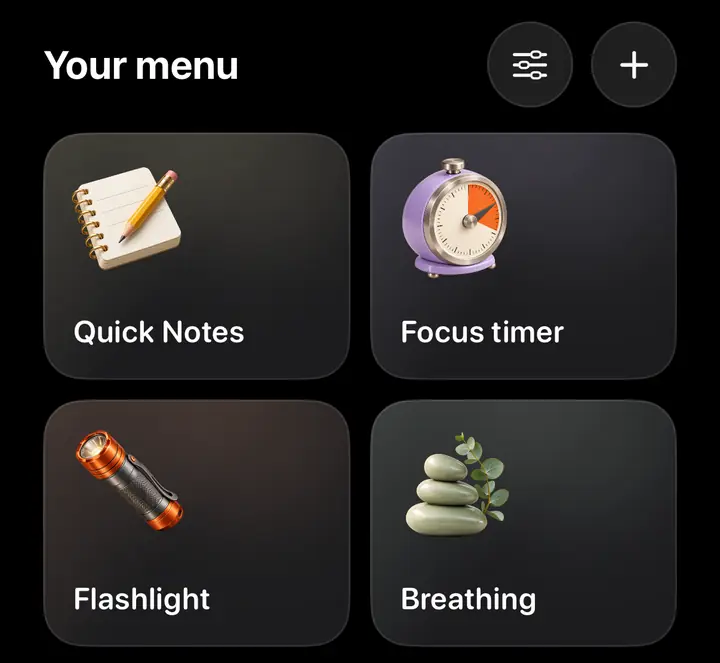
The Everyday menu on SideKey’s Menu tab. The two round buttons edit and add actions. -
Step 3 Choose Open Launcher in Settings
- Open the Settings app and tap Action Button.
- Swipe through the options until you reach Shortcut.
- Tap Choose a Shortcut…
- Find SideKey in the list and tap Open Launcher.
That’s all you need to change in Settings.
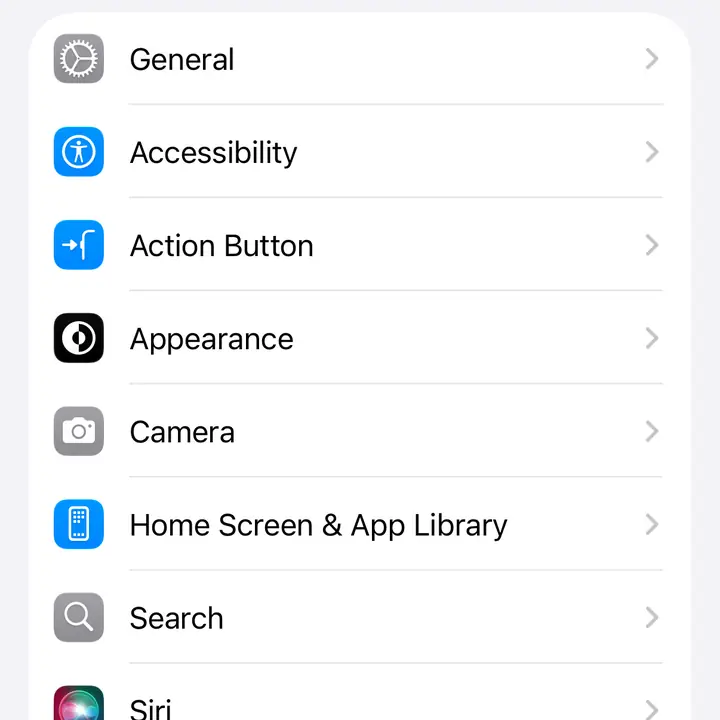
Settings → Action Button 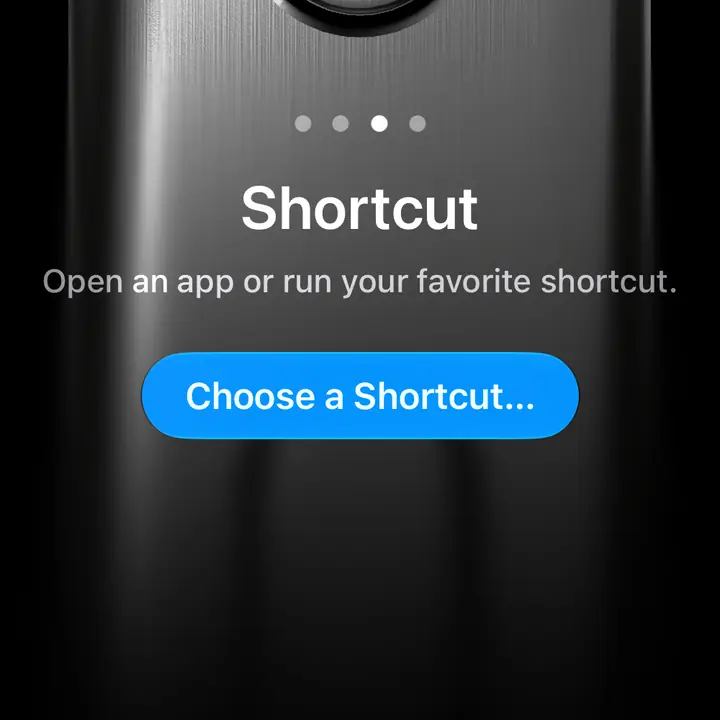
Swipe to Shortcut, then tap Choose a Shortcut… 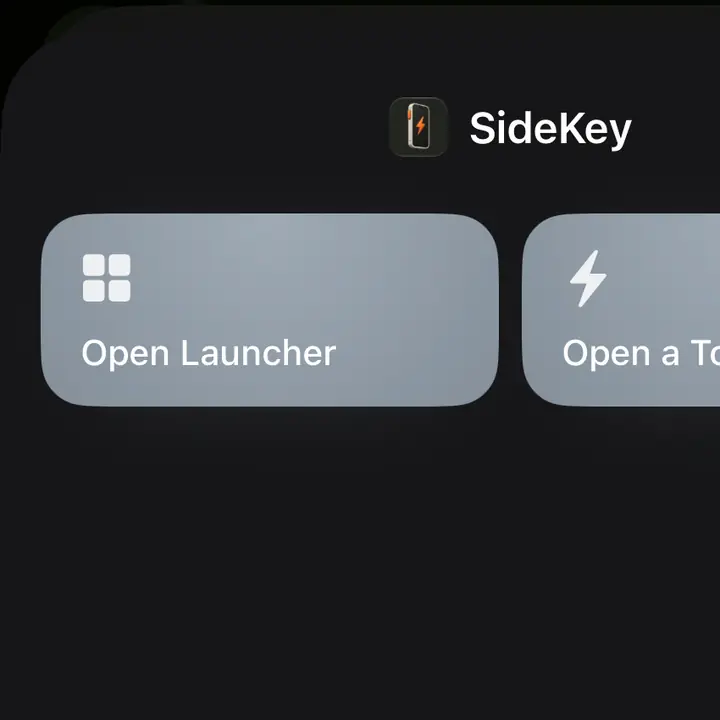
Under SideKey, tap Open Launcher -
Step 4 Press and hold to try it
Press and hold the Action Button. SideKey opens your menu under Choose an action. Tap Quick Notes, write a line and save it. The row at the top of the menu switches between your profiles, such as Everyday and Work.
If your iPhone is locked, unlock it when asked. SideKey opens like an app, so iOS needs Face ID or your passcode first.
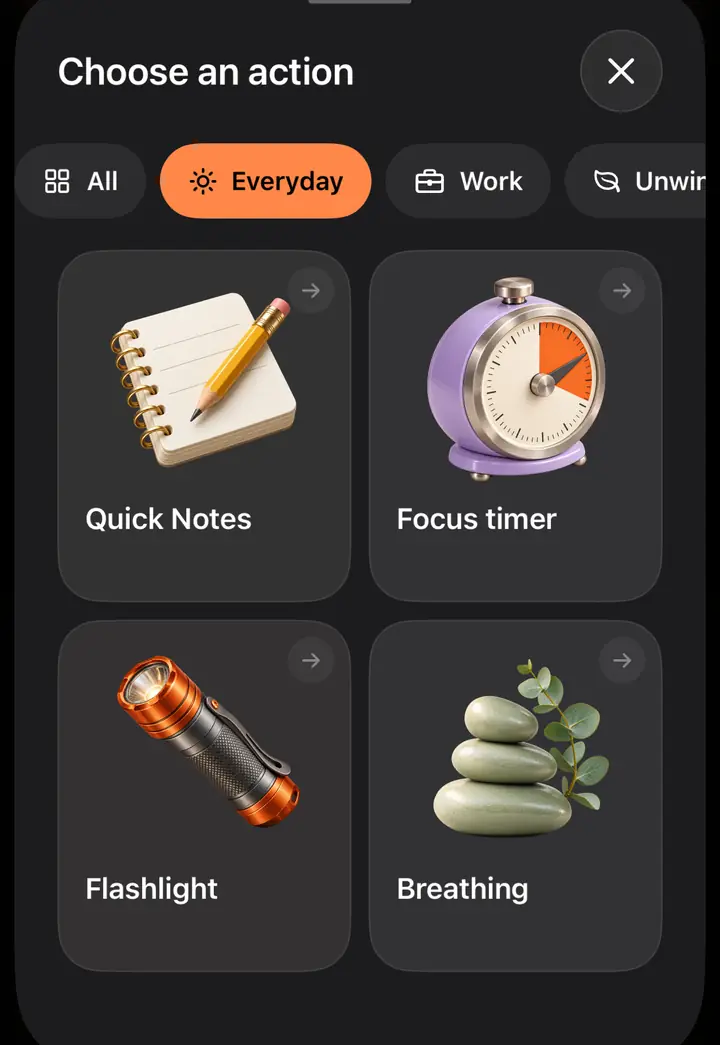
The menu after a press and hold of the Action Button.
If it doesn’t work
- SideKey isn’t in the shortcut list
- Open SideKey once more, then check Settings again. You can also open the Shortcuts app, make a new shortcut with SideKey’s Open Launcher action, and choose that shortcut under Action Button → Shortcut.
- The button opens one tool instead of the menu
- SideKey’s Setup tab can give the button a single action. Open the Setup tab and choose Open your menu as the action.
- The menu shows different tools
- Each profile has its own menu. Switch to the profile you edited at the top of the Menu tab, or in the row at the top of the menu.
- A quick press does nothing
- The Action Button runs its action only when you press and hold it. A quick press just shows which action is assigned.
Two actions instead of a menu
If you only need two things, SideKey can skip the menu: one action runs when you hold your iPhone upright and another when you hold it sideways, for example Quick Notes upright and Flashlight sideways. The Setup tab in SideKey walks you through it. You pick an action for each position, add the SideKey Duo shortcut, and choose SideKey Duo under Settings → Action Button → Shortcut instead of Open Launcher.
No Action Button?
You can open the same menu in other ways. Say “Siri, open my launcher in SideKey.” Or create a shortcut with SideKey’s Open Launcher action and add it to your Home Screen or the Shortcuts widget. You can also choose that shortcut for Back Tap in Settings → Accessibility → Touch → Back Tap.
Get SideKey
SideKey is free on the App Store for iPhone with iOS 18.6 or later. SideKey+ adds camera, voice and scanning tools, your own Apple shortcuts and more.